

3.5 mm Audio Jack
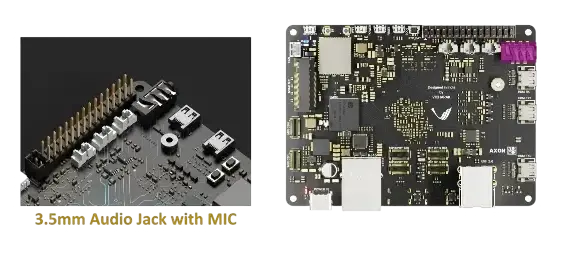
The 3.5 mm audio jack on axon-based RK3588 Rockchip SBCs running Linux provides analog stereo output and, where supported by the hardware, a microphone input.
Key Features
Analog stereo output via a 3.5 mm TRS jack
Headset/jack-detect support where implemented by the board
Full integration with ALSA, and compatibility with PulseAudio or PipeWire
Getting Started
Prerequisites - Linux kernel with RK3588 audio drivers enabled - Root access - ALSA utilities installed (alsa-utils)
Verification and testing
Identify audio devices
arecord -l
aplay -l
In Axon, you will be shown below audio devices :
vicharak@vicharak:~$ arecord -l
 **** List of CAPTURE Hardware Devices ****
 card 0: rockchipes8388 [rockchip-es8388], device 0: dailink-multicodecs ES8323 HiFi-0 [dailink-multicodecs ES8323 HiFi-0]
 Subdevices: 1/1
 Subdevice #0: subdevice #0
vicharak@vicharak:~$ aplay -l
 **** List of PLAYBACK Hardware Devices ****
 card 0: rockchipes8388 [rockchip-es8388], device 0: dailink-multicodecs ES8323 HiFi-0 [dailink-multicodecs ES8323 HiFi-0]
   Subdevices: 1/1
   Subdevice #0: subdevice #0
 card 1: rockchipdp0 [rockchip-dp0], device 0: rockchip-dp0 spdif-hifi-0 [rockchip-dp0 spdif-hifi-0]
   Subdevices: 1/1
   Subdevice #0: subdevice #0
 card 2: rockchipdp1 [rockchip-dp1], device 0: rockchip-dp1 spdif-hifi-0 [rockchip-dp1 spdif-hifi-0]
   Subdevices: 1/1
   Subdevice #0: subdevice #0
 card 3: rockchiphdmi0 [rockchip-hdmi0], device 0: rockchip-hdmi0 i2s-hifi-0 [rockchip-hdmi0 i2s-hifi-0]
   Subdevices: 1/1
   Subdevice #0: subdevice #0
 card 4: rockchiphdmi1 [rockchip-hdmi1], device 0: rockchip-hdmi1 i2s-hifi-0 [rockchip-hdmi1 i2s-hifi-0]
   Subdevices: 1/1
   Subdevice #0: subdevice #0
Determine the target card/PCM ( card 0: rockchipes8388 ) for the 3.5 mm jack.
Review the output from the commands above to locate the card corresponding to the RK3588 audio codec.
If multiple cards are present, select the one associated with the onboard codec.
Test playback
aplay -D hw:0,0 /usr/share/sounds/alsa/Front_Center.wav
aplay is an ALSA (Advanced Linux Sound Architecture) tool designed to play raw audio and basic WAV files. It does not have a built-in MP3 decoder.
If you hear audio, the playback path is functioning for the selected card.
Test recording (if a microphone input is available)
arecord -D hw:0,0 -f cd -d 5 test.wav
aplay test.wav
If you hear playback of the recorded sample, the mic path is functioning.
Adjust volume and mute settings
sudo apt-get install -y alsa-utils
alsamixer
In the interactive interface, select the correct sound card (F6) and ensure Master/Headphone/Output are unmuted and at an audible level.
To play that .mp3 file, you need to use a program that can actually decode MP3s.
Use an MP3 player and Install and use a command-line MP3 player like mpg123, mpv, or ffplay.
For example, using mpg123:
sudo apt install mpg123
mpg123 <Audio>.mp3
Optional: using PulseAudio or PipeWire
If you rely on PulseAudio or PipeWire, ensure the AKS/ALSA sink is mapped to the 3.5 mm output.
Use a mixer application (pavucontrol or pw-cli) to select the correct output device (Headphones or Speaker) and input (Microphone) as needed.
Notes
Board-specific device-tree or kernel configuration may be required to enable the 3.5 mm jack or mic bias.
Sound servers (PulseAudio/PipeWire) may override ALSA settings; ensure the correct sink/source is selected for your application.
See Also
ALSA Project: Advanced Linux Sound Architecture
PulseAudio and PipeWire sound servers
Linux Kernel: RK3588 audio drivers and device-tree bindings
alsa-utils: arecord, aplay, amixer