

Speakers
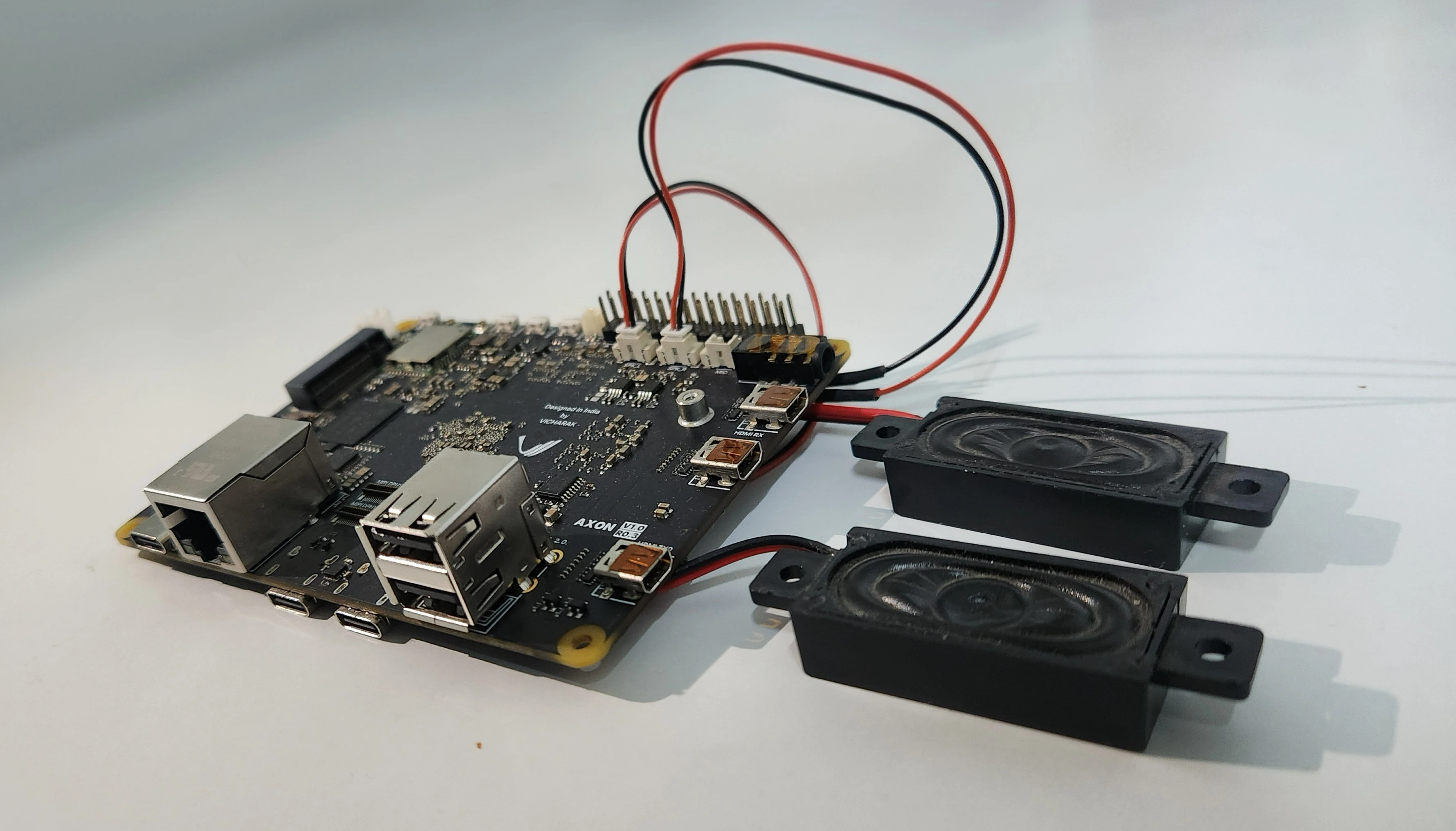
The axon users can connect broad range of speakers to the board. The axon board uses a ES8388 chip, which integrates a DAC (Digital-to-Analog Converter) and an ADC (Analog-to-Digital Converter) which provides a codec interfaces with the system via the I2S bus and is commonly used in designs requiring high-quality analog audio capture and playback.
Hardware Interface
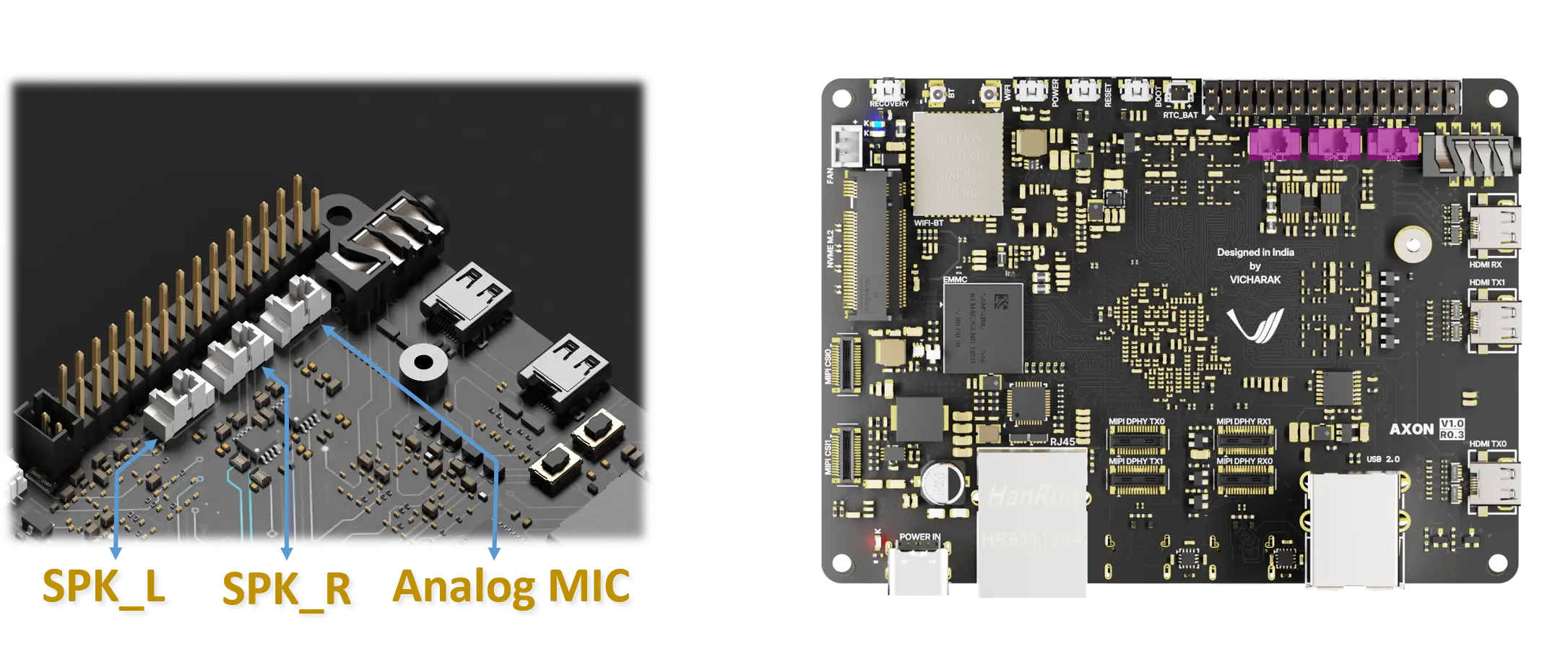
Speaker Specifications: - Load Impedance: 4 ohm - Rated Power: 3W
How to Setup
Follow these steps to connect and use speakers with the Axon board.
1. Connect the Speaker
Connect your speaker to the Axon board:
Speaker positive → Speaker output pin on Axon (shown in image)
Speaker negative → Axon GND
Ensure connections are secure and properly seated.
2. Play Audio through Speaker
This section describes how to play audio through the speaker connected to the SBC using ALSA utilities.
Prerequisites
Ensure:
Speaker or headphones are properly connected to the SBC
ALSA utilities are installed
Install if needed:
sudo apt install alsa-utils
Step 1: Identify the Speaker Device
List available playback devices:
aplay -l
Example output:
     vicharak@vicharak:~$ aplay -l
**** List of PLAYBACK Hardware Devices ****
card 0: rockchipes8388 [rockchip-es8388], device 0: dailink-multicodecs ES8323.3-0011-0 [dailink-multicodecs ES8323.3-0011-0]
  Subdevices: 1/1
  Subdevice #0: subdevice #0
card 1: rockchipdp0 [rockchip-dp0], device 0: rockchip-dp0 spdif-hifi-0 [rockchip-dp0 spdif-hifi-0]
  Subdevices: 1/1
  Subdevice #0: subdevice #0
card 2: rockchipdp1 [rockchip-dp1], device 0: rockchip-dp1 spdif-hifi-0 [rockchip-dp1 spdif-hifi-0]
  Subdevices: 1/1
  Subdevice #0: subdevice #0
card 3: rockchiphdmi0 [rockchip-hdmi0], device 0: rockchip-hdmi0 i2s-hifi-0 [rockchip-hdmi0 i2s-hifi-0]
  Subdevices: 1/1
  Subdevice #0: subdevice #0
card 4: rockchiphdmi1 [rockchip-hdmi1], device 0: rockchip-hdmi1 i2s-hifi-0 [rockchip-hdmi1 i2s-hifi-0]
  Subdevices: 1/1
  Subdevice #0: subdevice #0
See the chip name : rockchipes8388 it contains ES8388 which is an analog audio codec chip, which handles: audio
Note down the card and device number for this to be used in below commands
Note the:
card number
device number
Step 2: Play Audio File
Play an audio file using ( Note : Use the card and device number noted above, for eg: here hw:0,0 is used ):
speaker-test -D hw:0,0 -c 2
aplay -D plughw:0,0 test.wav
Parameter Explanation
Parameter |
Meaning |
|---|---|
|
Select playback device |
|
Audio file to play |
Step 3: Verify Playback
You should hear audio from the connected speaker or headphones.
Step 4: Test Speaker with Built-in Sound
Play a test tone or system sound:
speaker-test -D plughw:0,0 -c 2 -t wav
Parameter Explanation
Parameter |
Meaning |
|---|---|
|
Playback device |
|
Stereo channels |
|
WAV test sound |
Stop test with:
Ctrl + C
Supported Audio Formats
ALSA supports:
WAV (recommended)
16-bit PCM
Mono or Stereo
Various sample rates (16 kHz, 44.1 kHz, 48 kHz)
Example:
aplay -D plughw:0,0 -f S16_LE -r 16000 -c 1 test.wav
Volume Control
Open ALSA mixer:
alsamixer
Use:
Arrow keys → adjust volume
F6→ select sound cardM→ mute/unmute
Ensure output is not muted.
Troubleshooting
No sound output
Check device list:
aplay -l
Check volume:
alsamixer
Ensure:
Output channel is enabled
Volume is not muted
Test speaker hardware directly:
speaker-test -c 2
—
Notes
Use
plughwfor automatic format conversionWAV format is recommended for compatibility
Ensure speaker is properly powered (if external)
Load impedance must match speaker specifications (4 ohm for Axon)
Rated power is 3W per channel