

Customizing Splash Screen/Logo in Linux
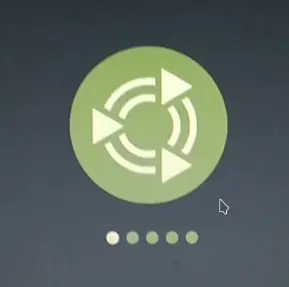
This document provides a step-by-step guide to changing the boot splash screen using Plymouth, a graphical boot animation and logger used in many Linux distributions.
Requirements
Ensure the following packages are installed:
plymouth
plymouth-themes
On Debian/Ubuntu-based systems:
sudo apt update
sudo apt install plymouth plymouth-themes
Set plymouth theme using command
Downloaded theme should be copied in
/usr/share/plymouth/themes/directory.After you have the Plymouth theme installed into the directory, you will need to add the theme to the default.plymouth. To add the theme you add it like so:
sudo update-alternatives --install /usr/share/plymouth/themes/default.plymouth default.plymouth /usr/share/plymouth/themes/space-sunrise/space-sunrise.plymouth 100
Note
The command of plymouth-set-default-theme is a Debian command and not used in Ubuntu.
Ubuntu uses sudo update-alternatives --config default.plymouth to set the default Plymouth theme.
Then you run the –config option so that you can choose the new Plymouth theme:
sudo update-alternatives --config default.plymouth
Below output, you can show :
vicharak@vicharak:~$ sudo update-alternatives --config default.plymouth
There are 5 choices for the alternative default.plymouth (providing /usr/share/plymouth/themes/default.plymouth).

  Selection    Path                                                                           Priority   Status
------------------------------------------------------------
  0            /usr/share/plymouth/themes/ubuntu-mate-logo/ubuntu-mate-logo.plymouth           150       auto mode
  1            /usr/share/plymouth/themes/bgrt/bgrt.plymouth                                   110       manual mode
  2            /usr/share/plymouth/themes/spinner/spinner.plymouth                             70        manual mode
  3            /usr/share/plymouth/themes/ubuntu-mate-logo/ubuntu-mate-logo-scale-2.plymouth   149       manual mode
  4            /usr/share/plymouth/themes/ubuntu-mate-logo/ubuntu-mate-logo.plymouth           150       manual mode
* 5            /usr/share/plymouth/themes/vortex-ubuntu/vortex-ubuntu.plymouth                 100       manual mode

Press <enter> to keep the current choice[*], or type selection number:
* determines which theme will be applied on next boot.
You can preview a theme with:
sudo plymouthd
sudo plymouth --show-splash
sudo plymouth --quit
You may require to restart lightdm service to use GUI interface again.
sudo systemctl restart lightdm.service
To set a new theme (example: vortex):
sudo update-initramfs -u
Change Splash Screen
Follow the steps below to change the system splash screen using Plymouth.
Extract the theme into the Plymouth themes directory and replace the logo with your own logo if required.
unzip <theme>.zip -d /usr/share/plymouth/themes/Register the theme using the following command:
sudo update-alternatives --install \
/usr/share/plymouth/themes/default.plymouth default.plymouth \
/usr/share/plymouth/themes/fedora-logo/fedora-logo.plymouth 100
Select the default theme.
sudo update-alternatives --config default.plymouthExample output:
There are 10 choices for the alternative default.plymouth
(providing /usr/share/plymouth/themes/default.plymouth).

  Selection    Path                                                                           Priority   Status
-----------------------------------------------------------------------------------------------
  0            /usr/share/plymouth/themes/ubuntu-mate-logo/ubuntu-mate-logo-scale-2.plymouth   149       auto mode
  1            /usr/share/plymouth/themes/avi/theme.conf                                       100       manual mode
  2            /usr/share/plymouth/themes/bgrt/bgrt.plymouth                                   110       manual mode
  3            /usr/share/plymouth/themes/eos-bgrt/eos-bgrt.plymouth                           100       manual mode
* 4            /usr/share/plymouth/themes/fedora-logo/fedora-logo.plymouth                     100       manual mode
  5            /usr/share/plymouth/themes/logo-mac-style/logo-mac-style.plymouth               100       manual mode
  6            /usr/share/plymouth/themes/spinner/spinner.plymouth                             70        manual mode
  7            /usr/share/plymouth/themes/steamdeck/steamdeck.plymouth                         100       manual mode
  8            /usr/share/plymouth/themes/test/test.plymouth                                   100       manual mode
  9            /usr/share/plymouth/themes/ubuntu-mate-logo/ubuntu-mate-logo-scale-2.plymouth   149       manual mode
  10           /usr/share/plymouth/themes/ubuntu-mate-logo/ubuntu-mate-logo.plymouth           100       manual mode
Select the corresponding number for the Fedora theme.
Apply the changes for every boot by updating the initramfs:
sudo update-initramfs -u
You can edit fedora-logo.plymouth according to use cases.
Debugging Plymouth Issues
Check logs for boot messages:
journalctl -b | grep plymouth
Make sure kernel command line has splash and quiet:
Notes
Not all distributions support Plymouth out-of-the-box.
Image formats: PNG recommended.
Theme script (Lua) can be extended with animations, text, and progress indicators.
References
Plymouth GitHub: Plymouth
Theme Examples:
/usr/share/plymouth/themes/