

HDMI TX
HDMI 2.1 TX Port on Axon Vicharak Board
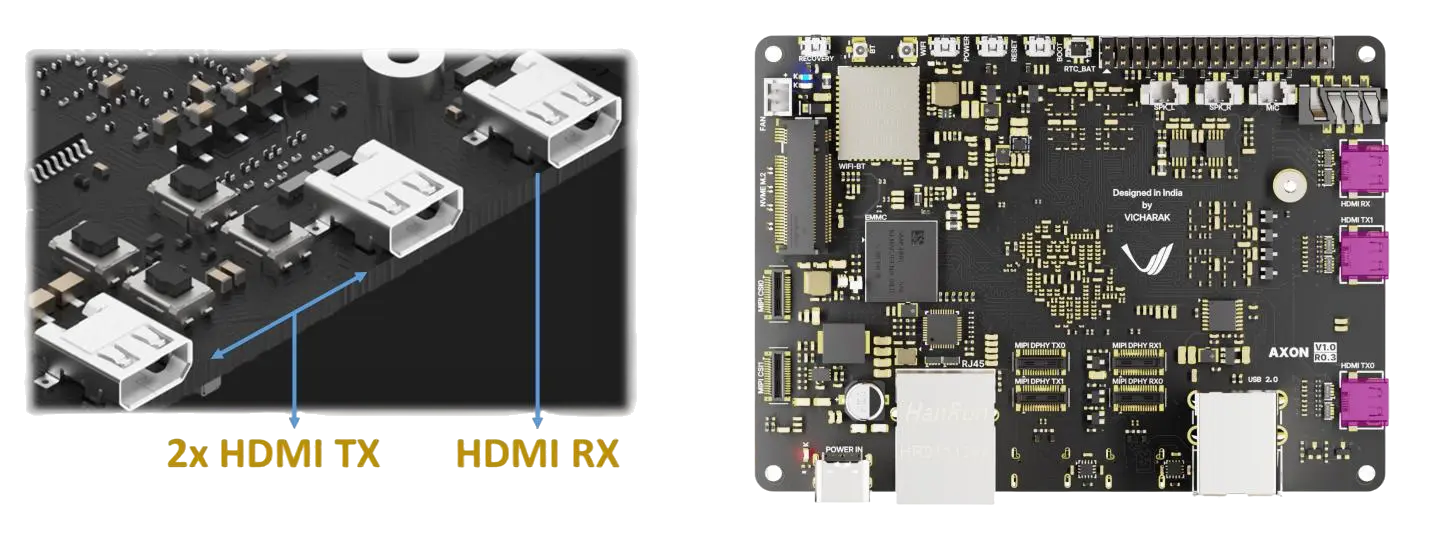
The Axon board provides HDMI 2.1 TX ports for connecting external displays such as monitors, TVs, or projectors.
Hardware Connection
The Axon board provides:
2 × HDMI TX ports (HDMI TX0 and HDMI TX1)
1 × HDMI RX port
To connect a display:
Locate the HDMI TX port on the board (labeled HDMI TX0 or HDMI TX1).
Connect a High Speed HDMI 2.1 cable from the board to the display.
Power on both the board and the display.
Set the display input source to the corresponding HDMI port.
Display Configuration Using Terminal
Detect Connected Displays
Run the following command to detect connected HDMI displays:
xrandr -q
Look for entries marked as connected, for example:
HDMI-1 connected 1920x1080+0+0
The name (e.g., HDMI-1) will be used in subsequent commands.
List Supported Display Modes
To view all supported resolutions and refresh rates:
xrandr
This command displays available modes such as:
3840x2160 60.00*
1920x1080 60.00
1280x720  60.00
Set Resolution and Refresh Rate
Note
Replace HDMI-1 and resolution values (3840 X 2160) with those supported by your display.
Set 4K resolution at 60 Hz:
xrandr --output HDMI-1 --mode 3840x2160 --rate 60
Set 1080p resolution at 60 Hz:
xrandr --output HDMI-1 --mode 1920x1080 --rate 60
Auto-detect Recommended Resolution
To automatically configure the optimal resolution:
xrandr --output HDMI-1 --auto
Identify Correct HDMI Output Name
If unsure about the HDMI output name, run:
xrandr -q
Use the output name marked as connected.
Troubleshooting: HDMI Not Detected or No Display
Check Physical Connections
Ensure the HDMI cable is securely connected to both the board and the display.
Verify the display is powered on.
Confirm the correct HDMI input source is selected on the display.
Try a different HDMI cable or display if necessary.
Check Kernel and Driver Messages
Verify EDID detection:
dmesg | grep -i edid
Ensure no HDMI or video subsystem errors are reported.
Rescan Displays
Trigger automatic display detection:
xrandr --auto